Table of Contents
How To: Display Real-Time CPU Usage In Total Launcher
← or →
Using Tasker
Due to Android platform security and SELinux restrictions introduced in Android 8.0+ (Oreo), Total Launcher can no longer read system CPU metrics directly from /proc/stat. This guide details how to query system CPU usage via elevated ADB/Shizuku shell commands in Tasker and push that value into a Total Launcher Text Variable on the home screen.
Prerequisites:
- Total Launcher (installed and set as default or active Launcher).
- Tasker (with ADB WiFi / Shizuku / Root permissions enabled to run shell dumps).
- 5–10 minutes for setup and verification.
Create the CPU Variable Object in Total Launcher
Before setting up the background broadcast, create the graphic text element in Total Launcher that will listen for the value.
- Enter Edit mode in Total Launcher (long-press empty space or tap the Launcher edit handle).
- Tap Add (+) > Graphic > Default > Text.
- Tap the newly placed text object to open its property dialog, then select the Edit (Gear/Pencil) icon.
- In the text input field:
- Delete the default text placeholder.
- Scroll through the dynamic insert options and choose Advanced: Variable (or format the variable tag manually).
- Set the variable placeholder to:
%cpu_val%
- (Note: Can add suffix text if desired, e.g., "CPU: %cpu_val%" to output
CPU: 18%).
- Adjust typography, font color, size, and alignment to suit the theme layout.
- Tap the checkmark to confirm and exit Edit mode.
Build the Query Task in Tasker
Now create the task that samples current CPU load and sends the broadcast intent to Total Launcher.
- Create the Task
- Open Tasker and switch to the Tasks tab.
- Tap the + button at the bottom right to create a new task and name it:
Update TL CPU
- Query CPU Utilization (Run Shell)
- Tap + to add an action.
- Select Code > Run Shell (or use Shizuku / Tasker ADB command).
- Enter the preferred command into the Command field:
- Instantaneous Snapshot (`top`): Captures immediate execution load:
top -b -n 1 | grep -E "User|CPU" | head -n 1
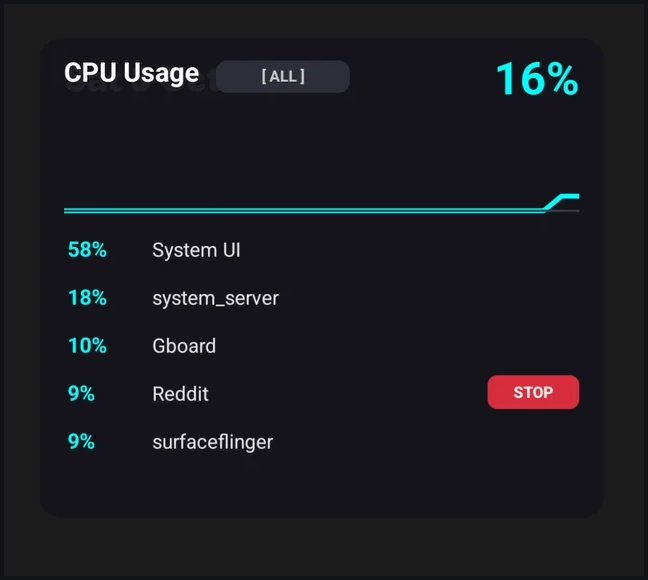
- This code can produce a multi-line report as suggested by Redditor u/osmols_b with the sample shown here
- Smoothed Rolling Average (`dumpsys`): Calculates average load across a rolling ~60–90 second window:
dumpsys cpuinfo | grep "TOTAL:" | awk '{print $1}'
- Under Store Output In, enter:
%cpu_raw
- Ensure Use Root or Use ADB WiFi / Shizuku is checked (unprivileged standard shell cannot read top system processes on modern Android versions).
- Parse and Format the Percentage
- Depending on the shell command output, extract the numeric value:
- Tap + > Variables > Variable Search Replace.
- Variable:
%cpu_raw - Search:
[0-9]+(?=%)(or[0-9]+to match the first integer). - Check Store Matches In Array:
%cpu_out. - *(Optional)* If
%cpu_out1is empty, set a fallback: Variable > Variable Set > Name%cpu_valTo%cpu_out1(or To0if unset). - Broadcast the Variable to Total Launcher
- Total Launcher supports direct integration via the plugin as well as standard broadcast intents.
- Option A (Using the Total Launcher Tasker Plugin):
- Tap + > Plugin > Total Launcher.
- Select Configuration / Edit.
- Choose Set Variable.
- Set Variable Name:
cpu_val - Set Value:
%cpu_val - Tap the checkmark to save the plugin action.
- Option B (Using Send Intent):
- Tap + > System > Send Intent.
- Action:
com.ss.launcher.total.action.SET_VARIABLE - Package:
com.ss.launcher2 - Extra:
var:cpu_val - Extra:
value:%cpu_val - Target:
Broadcast Receiver
Automate the Refresh Schedule
- Because continuous 1-second sampling can consume battery, an interval of 5 to 15 seconds while the display is active is recommended.
- In Tasker, navigate to the Profiles tab.
- Tap + > State > Display > Display State > Set to On.
- Link this profile to the task
Update TL CPU. - Open the task and add a loop structure (or use a Time Context repeating every 2 minutes for ambient monitoring):
- Anchor:
LoopStart - Perform Action: (Execute shell & send variable steps)
- Task > Wait > Set to
5 Seconds(or10 Seconds). - Task > Goto > Type:
Action Label> Label:LoopStart(Add condition:IF %SCREEN ~ on).
Tip: Add a manual refresh tap action! In Total Launcher, select the CPU text element, open its Tap Action, select Tasker Task, and link it directly to Update TL CPU. Tapping the on-screen text instantly updates the CPU reading on demand.
Using MacroDroid
Following the SELinux restrictions implemented in modern Android versions, Total Launcher cannot query /proc/stat directly for system CPU data. This guide walks through configuring MacroDroid (via ADB Hack or Shizuku) to extract live CPU utilization and update a Total Launcher Text Variable on the home screen.
Prerequisites:
- Total Launcher (installed and running).
- MacroDroid with elevated permissions enabled (granted via Shizuku or via one-time PC ADB command:
adb shell pm grant com.arlosoft.macrodroid android.permission.DUMP). - 5–10 minutes for setup and verification.
Create the CPU Variable Object in Total Launcher
- First, set up the on-screen graphic text item that displays the received value.
- Long-press an empty space or tap the Launcher edit handle to enter Edit mode.
- Tap Add (+) > Graphic > Default > Text.
- Tap the new text item to open its property dialog, then select the Edit (Gear/Pencil) icon.
- In the text input field:
- Clear the default text.
- Insert the custom variable placeholder:
%cpu_val%
- (Note: You can include custom labels or formatting, e.g., "CPU: %cpu_val%" to output
CPU: 24%).
- Adjust typography, size, color, and positioning as desired.
- Tap the checkmark to save and exit Edit mode.
Configure MacroDroid Variables
- Before building the macro, configure two local variables to store the raw output and the parsed numeric percentage.
- Open MacroDroid and tap Variables (or expand the Variables drawer at the bottom of the Macro edit screen).
- Tap + to add a new variable:
- Name:
cpu_raw - Type: String
- Tap + to add a second variable:
- Name:
cpu_val - Type: String (or Integer)
Build the Macro in MacroDroid
- Create the Macro and Define Triggers
- Open MacroDroid and tap Add Macro.
- Set the macro name at the top to:
Update TL CPU
- Under Triggers (red section), tap +:
- Screen & Speaker > Screen On/Off > Screen On.
- *(Optional secondary trigger for ambient updates):*
- Tap + under Triggers > Date/Time > Regular Interval > Set to 10 seconds (or 30 seconds) > Under Constraints, add Screen On so it only fires while the display is awake.
- Query System CPU Load
- Under Actions (blue section), tap +.
- Navigate to Applications > Shell Script.
- In the script editor:
- Select Shizuku or ADB Hack (do not use Non-rooted unless granted dump rights).
- Enter your preferred command into the script field:
- Instantaneous Snapshot (`top`):
top -b -n 1 | grep -E "User|CPU" | head -n 1
- Smoothed Rolling Average (`dumpsys`):
dumpsys cpuinfo | grep "TOTAL:" | awk '{print $1}'
- Under Output to variable, select:
cpu_raw
- Tap OK to save the action.
- Parse and Clean the Output
- Strip extra formatting or percentage signs to isolate the pure numeric value:
- Tap + under Actions > Variables > Text Manipulation.
- Select Extract text (Regex).
- Source variable:
cpu_raw - Regular expression:
[0-9]+
- Destination variable:
cpu_val - Tap OK.
- Broadcast the Variable to Total Launcher
- Send the broadcast intent directly to Total Launcher's receiver:
- Tap + under Actions > Connectivity > Send Intent.
- Configure the intent parameters exactly as follows:
- Action:
com.ss.launcher.total.action.SET_VARIABLE - Package:
com.ss.launcher2 - Target: Broadcast
- Extra 1 parameter:
var - Extra 1 value:
cpu_val - Extra 2 parameter:
value - Extra 2 value:
[lv=cpu_val]*(Select via the triple-dot menu or type `[lv=cpu_val]` to pass the local variable)* - Tap OK to save the action.
- Save and Test
- Tap the back arrow or the checkmark icon in the bottom-right corner to save the macro.
- In the macro overview screen, tap the three dots in the upper-right corner and select Run Actions (or Test Macro) to test execution.
- Return to the home screen; the text object will reflect the current live CPU percentage.
Tip: To update CPU readings on demand, open Total Launcher's Edit mode, tap the CPU text object, choose Tap Action > Launch Shortcut > MacroDroid > Run Macro, and link it to Update TL CPU.
Advanced: Total CPU + Top Consuming Apps
For a multi-line diagnostic widget displaying total machine load alongside the top three CPU-consuming processes, execute this command in your Tasker or MacroDroid shell action:
dumpsys cpuinfo | awk '/TOTAL:/ {total=$1} /^[ ]*[0-9]+(\.[0-9]+)?%/ && count < 3 {split($2, p, "/"); split(p[2], name, ":"); apps = apps "\n" $1 " " name[1]; count++} END {print "TOTAL:" total apps}'
This produces a multi-line string formatted like:
TOTAL:10%
19% system_server
10% surfaceflinger
10% net.dinglisch.android.taskerm
Pass this entire multi-line string directly to Total Launcher without regex stripping to show a full diagnostic readout inside a multi-line text object.
Why Individual Process Percentages Don't Add Up to TOTAL:
In Android's Linux shell metrics, individual process percentages are measured against a single core's capacity (100% = 1 core fully saturated; an 8-core CPU tops out at 800%). The TOTAL: line is normalized across the entire chipset (100% = whole device capacity). For example, 39% single-core equivalent spread across eight cores accounts for ~4.87% of total SoC power. Added to background kernel workers and I/O wait, the true machine-wide load lands at 10%.