Resources Image
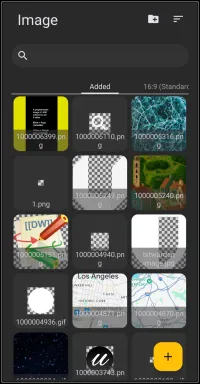
Resources Shape dialog. There are no selections to make.
This is the Launcher's Resource area for images the user has selected to store in the Launcher.
Key elements in the dialog are:
- Folder+
 - Tap this to activate the device file manager, navigate to the folder with the items to add, and selectadd all items from the folder.

- Sort
 - sets the sort order by
- Filename
- Recently added
- File size

- Search
 - Briefly, here a user would search or scroll through the images to select the one needed. Filenames on the thumbnail are small and hard to read, and if “system” assigned, are basically meaningless to the user.

- 16:9 (Standard) - represents optional screen resolutions for use. The Added shows the current image usage, while 16:9 represents the standard resolution for 1080×2400. Screen resolution affects how elements, such as images, shapes (circles), and text, are displayed, which may appear correct on one resolution but skewed on another. Other resolutions available (very usable by multi-screen devices) are:
- 18:9 (medium screen)
- 18.5:9 (Long screen)
- 19:9 (Long screen medium)
- 19.3:9 (long screen medium +)
- 19.5:9 (Long screen +)
- 20:9 (Extra long screen)
- 21:9 (Super long screen)
- 22:9 (Flip - Super long screen)
- 25:9+2.5:18 (Fold)
- 25:9 (Extremely long screen)
- 22.5:18 (Squarish screen)
- 5:8 (Tablet)
- Add
 - If you need to import other images from another source (computer, cloud, thumb drive), click the “+” icon. More detailed information is available through the links at the end of this page.
An explanation is also found here for
or specifically for how to
===== Hidden Index Anchors =====
Comments & Feedback
Toby Lancer is ready to help! Look for the Quick Help form:
► Desktop: left sidebar located near the bottom for Private to Admin
► Mobile: 3-bar menu at page top.
► Use the Discussion section below to share any experiences and communications with other Total Launcher users.
► Any Registered User can directly update this and any wiki page if desired.
Moderation: To keep the manual clean, all comments are held for appropriateness review. Preview any comment before submitting it. It will not be displayed after submission until it is reviewed. So, please, do not resubmit.
Formatting: If using any code snippets, place them inside code tags (e.g., 'code') using double single quotes (') before and after to keep them readable.
Be Kind: This is a community effort. Please keep feedback constructive and on topic.
~~DISCUSSION~~