Table of Contents
Customizing: Total Launcher Dynamic Color Scheme
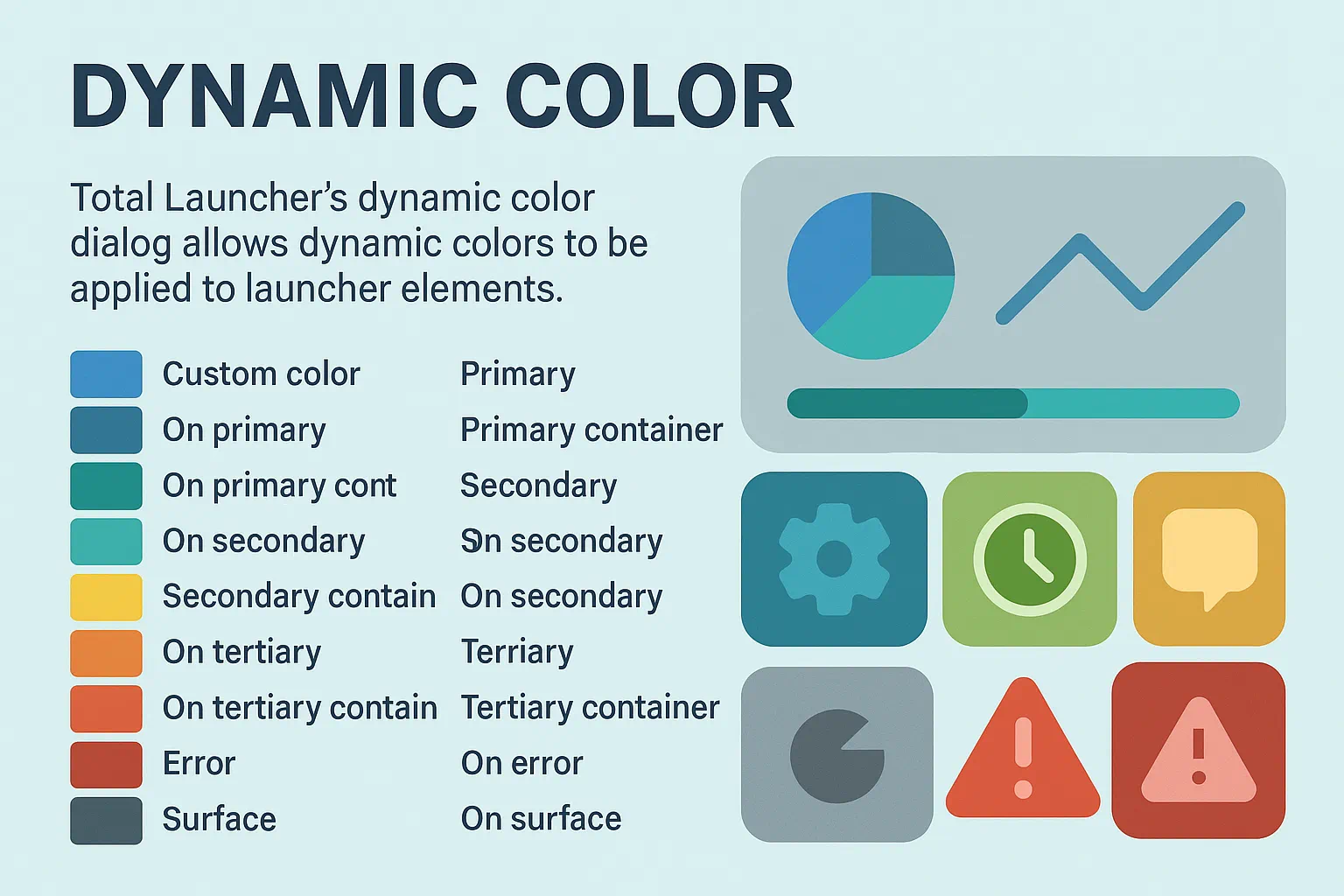
What it Does
Total Launcher leverages Android's Material You (M3) system to create a harmonized look for the home screen. Instead of manually picking a color for every text or icon, it is assigned as a Role. If desired, some additional background on how Material Design evolved through its iterations to the current Material You v3 can be viewed
Turn It On
To enable this engine:
Edit mode>Main Menu>Launcher options>UI & Animation>Dynamic Color Scheme[Check the box]
The Master Plan: A Museum Exhibit
Think of the device screen as a Museum Exhibit. When Material You (M3) is enabled, the system acts as a “Master Curator.” The Curator’s job is to ensure that every part of the exhibit works together in perfect color harmony based on the “theme” (as per the wallpaper).
Instead of picking random colors, Roles as assigned to the objects. These roles define the objects “job” on the in the museum:
- Primary (The Main Exhibit): The “Star of the Show.” Use for important search bars or main buttons. It wears the most vibrant color to make sure users see it first.
- Secondary (The Support Gallery): Supporting actors. Use for less important icons or smaller widgets. These stay in the same “color family” as the Primary role but are muted.
- Tertiary (The Highlight): A single spotlight on a specific artifact. This is a “surprise” color that adds variety and “pop” (like a notification badge).
- Neutral & Surface (The Walls & Floor): The building itself. Subtle background tones that allow the accented exhibits to shine.
- The “On” Roles (The Labels): Clear labels required for reading. The “On Primary” or “On Surface” roles are text colors designed to be automatically readable against their specific background.
The Curator in Action
These samples show how the same objects (clock, icons, buttons) change their “costumes” automatically when the Curator changes the theme.
Basic Theme

Dark Theme

Green Theme

Dynamic Color Cheat Sheet
This table explains the difference between the Dynamic Path (following the Curator) and the Custom Path (the Rebel).
| If choosing … | The Object follows… | Dynamic? | Best for… |
|---|---|---|---|
| Custom color | a manually assigned ARGB Codes | NO | Minimalist B/W or fixed brand colors. |
| Primary | Main System Accent | YES | Most important buttons and headings. |
| On Primary | Contrast Algorithm | YES | Text on top of Primary backgrounds. |
| Secondary | Supporting Accent | YES | Less important widgets or accents. |
| Tertiary | Complementary Accent | YES | “Pop” accents like clocks or badges. |
| Surface | System Background Tones | YES | Page backgrounds and subtle cards. |
Note: If the launcher shows “No Wallpaper,” M3 defaults to a neutral “Baseline” (usually dark blue or grey). To see the dynamic effect clearly, temporarily set a vibrant wallpaper.
Visual Guide to the Dialogs
| TL Dynamic Color dialog: Choosing a Role for your object |
|---|

| * Primary |
| * On primary |
| * Primary container |
| * On primary container |
| * Secondary |
| * On secondary |
| * Secondary container |
| * On secondary container |
| * Tertiary |
| * On tertiary |
| * Tertiary container |
| * On tertiary container |
| * Error |
| * On error * Error container |
| * On error container |
| * Surface |
| * On surface |
Troubleshooting & Tips
The colors aren't changing!
When wallpaper changes but the “Primary” text stays grey or blue, try these steps:
- The “Baseline” Trap: If the wallpaper is neutral, M3 defaults to a grey/blue palette. Use a vibrant wallpaper to verify the system is working.
- Sync Wallpaper: Ensure
Launcher options>UI & Animation>Sync system wallpaperis checked. - The “Force Refresh”: If the palette doesn't update:
- Restart the launcher:
Launcher options>Troubleshooting>Restart Total Launcher. - Toggle the
Dynamic color schemeoption OFF and then ON again.
- Custom Overrides: A Custom Color rule will always ignore the Dynamic “Role” script.
Noted Issues
There have been discussions on how Total Launcher has implemented it's Dynamic Color Scheme and Dynamic Color dialog. Since the developer of not made available background documentation on it's implementation, questions will continue to arise. There may also be some additional thoughts posted in the discussion section at the bottom of this page.
For those interested in reviewing other viewpoints,
Comments & Feedback
Toby Lancer is ready to help! Look for the Quick Help form:
► Desktop: left sidebar located near the bottom for Private to Admin
► Mobile: 3-bar menu at page top.
► Use the Discussion section below to share any experiences and communications with other Total Launcher users.
► Any Registered User can directly update this and any wiki page if desired.
Moderation: To keep the manual clean, all comments are held for appropriateness review. Preview any comment before submitting it. It will not display after submission until reviewed. So, please, do not resubmit.
Formatting: If using any code snippets place them inside code tags (e.g., 'code') using double single quotes (') before and after to keep them readable.
Be Kind: This is a community effort. Please keep feedback constructive and on topic.
~~DISCUSSION~~