meta data for this page
- en
Page Background
Dialog selections are discussed below the image. For navigation to an item make a selection in the Page Background image.
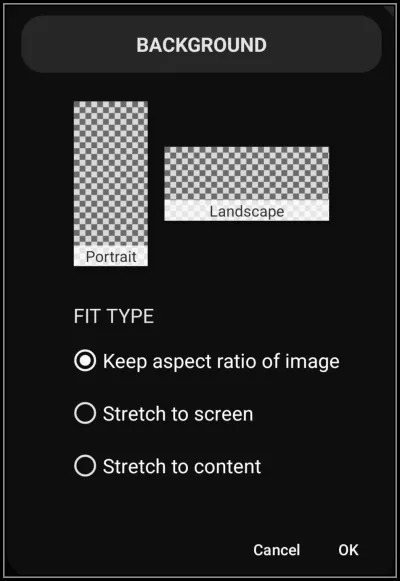
Page Background dialog. Make selection above.
Portrait vs Landscape
Device viewing position is a key feature of Total Launcher, allowing unique design layouts for the two usable positions of the device. Most objects occupy specific coordinates (X/Y axis), but standard Android systems often fail to retain proportionate relationships when rotating between vertical (portrait) and horizontal (landscape) modes.
Total Launcher separates these layouts, allowing the user to specify unique designs or backgrounds for each orientation.
A review of the “background” options shown in this dialog is below:
- Portrait & Landscape - The checkerboard pattern indicates transparency (no background selected). Tap either of these to show the background options for color, shape, or image with portrait and landscape being independent.
The next 3 elements below address “Fit Type” or how the launcher handles the an image to the screen/page dimensions:
- Keep aspect ratio of image - Scales the image to fit entirely within the screen boundaries while maintaining its original width-to-height proportions. If the image aspect ratio differs from the screen, this leaves empty space (letterboxing) on the sides or top/bottom.
- Stretch to screen - Forces the image to fill the entire visible screen area (viewport), regardless of the image's original dimensions. This eliminates empty borders but distorts (stretches or squashes) the image if its aspect ratio does not match the screen exactly. This creates a static background that does not scroll.
- Stretch to content - Maps the background image to the full dimensions of the page layout rather than just the visible screen. If the page is configured to scroll (e.g., a vertical page longer than the physical screen), the background stretches to cover the entire scrollable area.
- Cancel - Accepts no changes made to the dialog and exits to the previous screen.
- OK - Accepts any changes made and exits to the previous screen.
Comments & Feedback
Toby Lancer is ready to help! Look for the Quick Help form:
► Desktop: left sidebar located near the bottom for Private to Admin
► Mobile: 3-bar menu at page top.
► Use the Discussion section below to share any experiences and communications with other Total Launcher users.
► Any Registered User can directly update this and any wiki page if desired.
Moderation: To keep the manual clean, all comments are held for appropriateness review. Preview any comment before submitting it. It will not display after submission until reviewed. So, please, do not resubmit.
Formatting: If using any code snippets place them inside code tags (e.g., 'code') using double single quotes (') before and after to keep them readable.
Be Kind: This is a community effort. Please keep feedback constructive and on topic.
~~DISCUSSION~~