meta data for this page
Pro Tip: Add an Object From Another Setup Into Your Total Launcher Layout
For newer users wanting to learn and acquire assets. When viewing a shared or purchased setup and a particular object is strikingly interesting, just follow these steps to bring that object to your setup:
- When Total Launcher is running either a shared or paid setup (See here on how to import other setups.)
- Enter Edit On mode. While viewing the various objects (shapes, images, icons, windows, sequences, and shadows) select an interesting object
- In the Object Design menu (top) tap the Save icon.
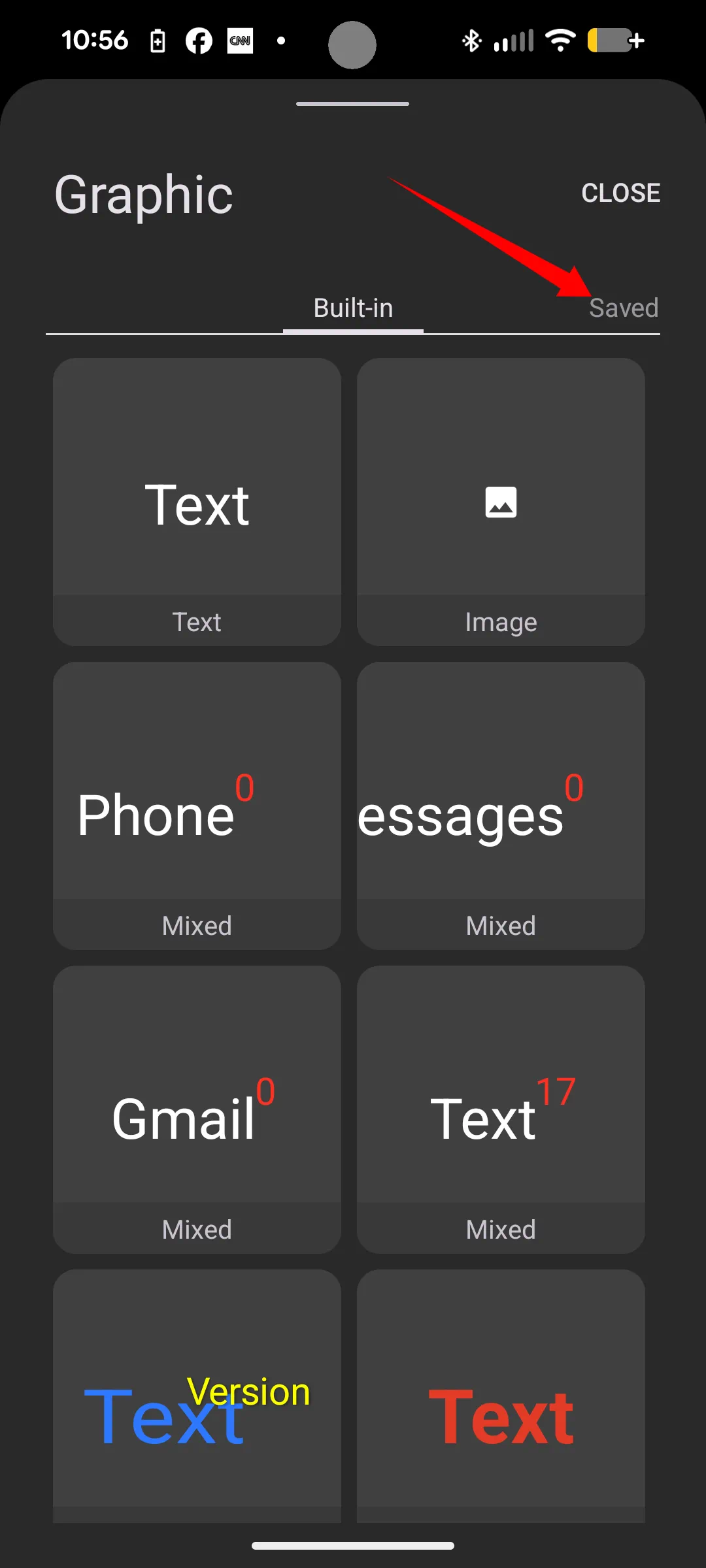
- The object goes to the “Saved” graphics section.
That “Saved” graphic is now accessible, even after re-loading the original TL setup. Then those new assets will be available in the Object Design menu: Add > Graphic > Saved tab when the original setup is re-imported, as viewed here.
You could leave a comment if you were logged in.