meta data for this page
Navigation Guide: Get the Best out of uiTLM
Mobile Visitors
To navigate, register, or sign in, go to the top of the device screen as shown in the image and description below.
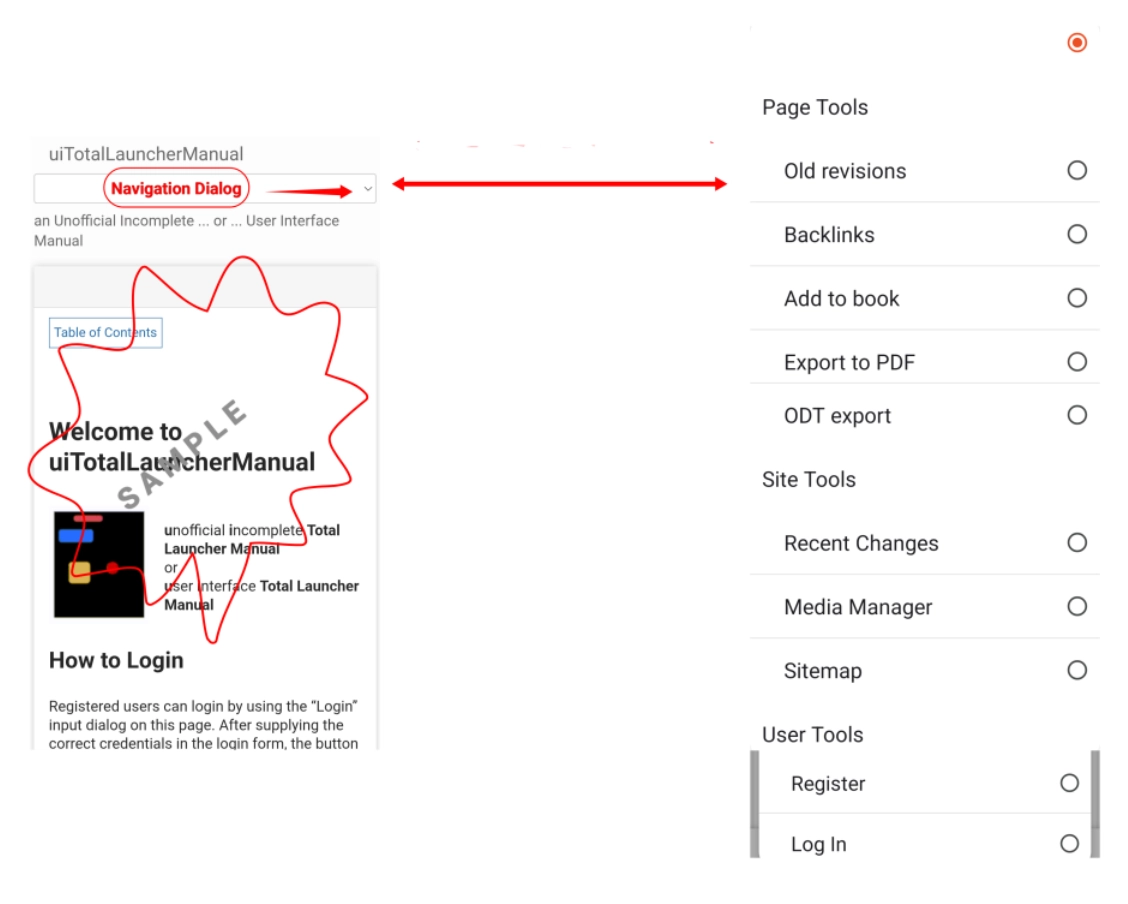
Left image: The double-ended red arrow shows the dialog box.
Right image: That dialog box expands to the image shown.
Tap on either to expand for a more detailed view, then back out of that view to return here.
Mobile Navigation Dialog
The Navigation Dialog availability is based on visitor status:
- Visitor - site navigation but no contribution, editing, or discussion tools.
- Registered - site navigation and access to all Page Tools
Page Tools
- Old revisions - Presents a list of previous revisions of the current page
- ** Backlinks** - Any wiki page that links to the current page will be listed here. It makes return navigation easier to “navigate” if lost
- Add to book - Click here to clip this page to a “book” for later download. Browse the wiki and add to that bin by clicking this icon.
- Export to PDF - Prior to leaving the wiki, clicking this icon will export the cumulative book for offline review.
Site Tools
- Recent Changes -
- Media Manager - With privileges, the Media Manager is the method to upload or edit images for a wiki page.
- Sitemap - Displays the raw, filename-based contents of the namespaces (directories). Allows direct navigation to that location when the filename is selected. Unless a user has keen instincts, prepare to get lost or injured.
User Tools
- Register - The gateway to becoming a registered user on this wiki. Registration is accompanied by greater wiki usability with
privileges.
- Log In - Once registered, a user can enter the wiki from this portal and enjoy all granted privileges.
Desktop Visitors
Self-registration is available at this wiki. To do so just click on the login  in the upper right corner of the screen to see a “Register” link (similar to the one in this login image to the right.
- Enter user data and hit register. Depending on how the wiki is configured, either an auto-generated password is sent by mail (the default) or a user can provide a personal password in the registration form.
Registration information can be updated at any time after logging in by clicking “Update Profile”.
You could leave a comment if you were logged in.
Comments & Feedback
Toby Lancer is ready to help! Look for the Quick Help form:
► Desktop: left sidebar located near the bottom for Private to Admin
► Mobile: 3-bar menu at page top.
► Use the Discussion section below to share any experiences and communications with other Total Launcher users.
► Any Registered User can directly update this and any wiki page if desired.
Moderation: To keep the manual clean, all comments are held for appropriateness review. Preview any comment before submitting it. It will not be displayed after submission until it is reviewed. So, please, do not resubmit.
Formatting: If using any code snippets, place them inside code tags (e.g., 'code') using double single quotes (') before and after to keep them readable.
Be Kind: This is a community effort. Please keep feedback constructive and on topic.
~~DISCUSSION~~