meta data for this page
Total Launcher Quick Start Guide: 5-Minute Setup & Core Editing Rules
Total Launcher operates as a completely customizable graphics canvas rather than a traditional, rigid Android launcher. Understanding the core editing mechanics, such as entering design modes, separating object appearance from touch actions, and managing layered window architecture, allows for rapid and efficient interface construction. This introductory overview establishes the three foundational rules required to build, edit, and navigate custom setups in under five minutes. The customization workflow begins with the universal editing gesture used throughout the entire platform.
The Golden Rule: "Press and Hold Everything"
- Everything in Total Launcher can be edited. To change, move, or resize an item, press and hold it.
- To open the main layout menu: Long-press any empty space on your home screen.
- To edit an item: Long-press the specific text, icon, or widget.
This is what happens:
- The Launcher is in Edit Off mode
- Tap an empty area of the screen to enter Edit mode
- Tap the Edit Off icon (lower right) to enter Edit On mode
- Tap the desired page (if a multi-page layout) to enter that page
- Notice the Object Design Menu at the top
- Tap the + icon to add an object
- Select Graphic > Default (allows other object types)

- Select Image (tap the desired image)
- Move the image to a location by tap-dragging on the image center
- Resize the image by tap-dragging on the image lower right handle
- Manual resize/movement dialog is shown by tapping the edit pencil
- Use the joystick for a refined movement of the object
- Tap an empty area to deselect the object
- Tap the Edit On icon (lower left) to enter Edit Off mode
🔗 Deep Dive: Starting with "The Object"
Anatomy of an Item: Appearance (⚙️) vs. Action (▶️)
| When you select an item in Edit Mode, two primary control buttons appear at the top: | |
|---|---|
| ⚙️ Appearance | ▶️ Action |
| Styles, Colors, | Taps, Swipes, |
| Fonts, & Shapes | App Launches |
| ⚙️ Gear Icon (Appearance): Controls how it looks fonts, shapes, padding, colors, and graphics. | ▶️ Play Icon (Action): Controls what it does launching an app, opening a window, or executing a gesture trigger. |
This is what happens:
- The Launcher is in Edit Off mode
- Tap an empty area of the screen to enter Edit mode
- Tap the Edit Off icon (lower right) to enter Edit On mode
- Tap the desired page (if a multi-page layout) to enter that page
- Tap-hold an object to select it
- In the Object Design Menu, select the Action icon
- Shows the Action and Target dialogs available
- From the Object Design Menu, select the Option icon

- Note the existing image in the image slot.
- Tap that image to enter the Image Resource dialog. Tap an image to select it.
- Scroll to view the remainder of the Option dialog.
- Tap Animation (lower right tab) to view its dialog.
- Swipe right-to-left to exit the dialog and return to the page.
- Note the new image. Tap an empty area to deselect the object.
- With no object selected, note the Page Design Menu at the top.
- Tap the Undo icon to revert the most recent change
🔗 Deep Dive: Editing Guides | All About Resources
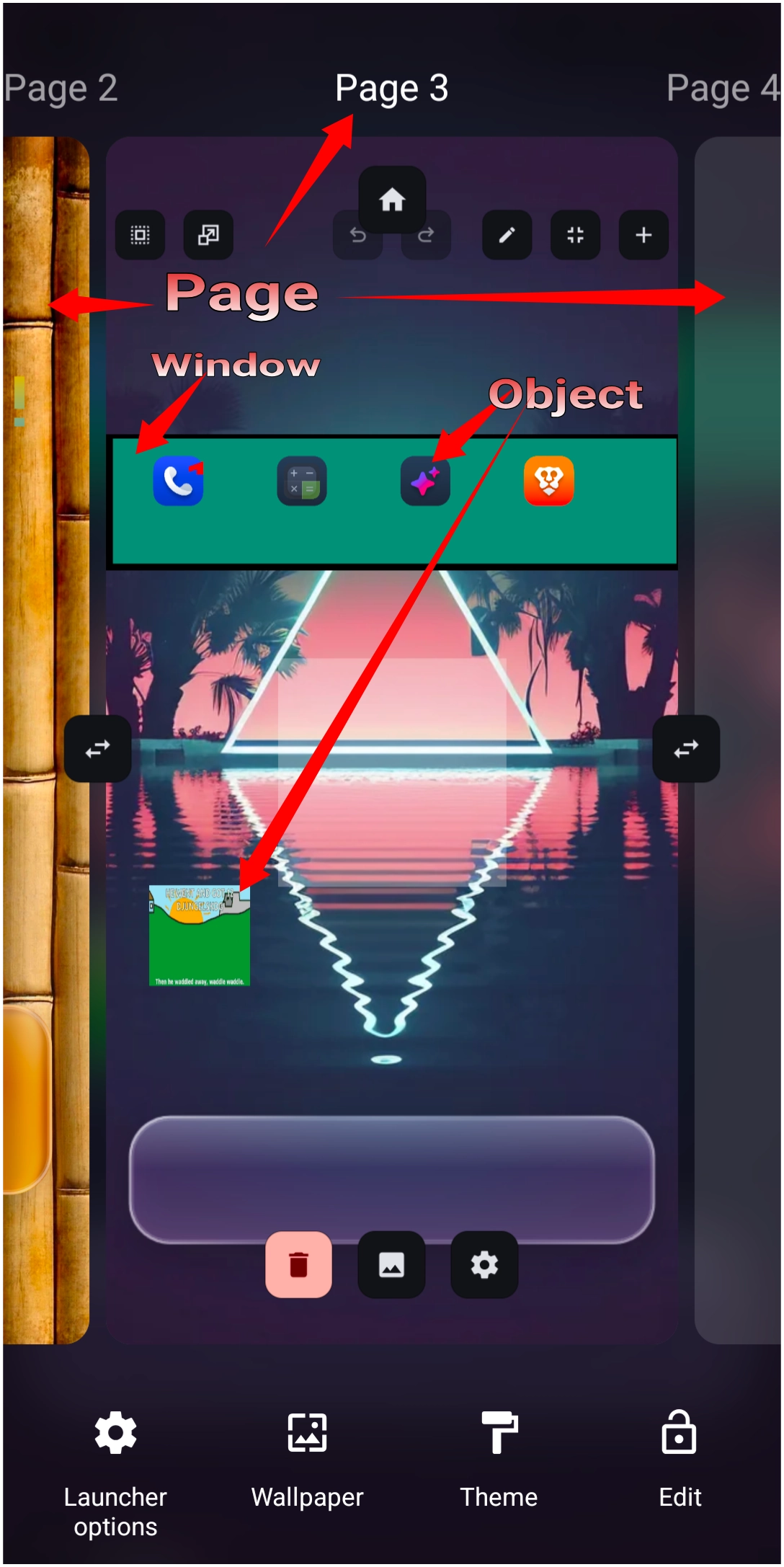
The 3 Layers: Pages, Windows, and Objects
- Total Launcher screens are built from three basic components:
| WINDOWS | Popups, drawers, sidebars |
| PAGES | Horizontal / Vertical grid |
| OBJECTS | Icons, Text, Shapes, Clock |
- Pages: The primary home screen pages.
- Windows: Popups, side panels, and custom app drawers that open on top of pages.
- Objects: The individual items placed onto Pages or Windows (Text, Images, Widgets, Shapes).
🔗 Deep Dive: Windows, Drawers, and Widgets
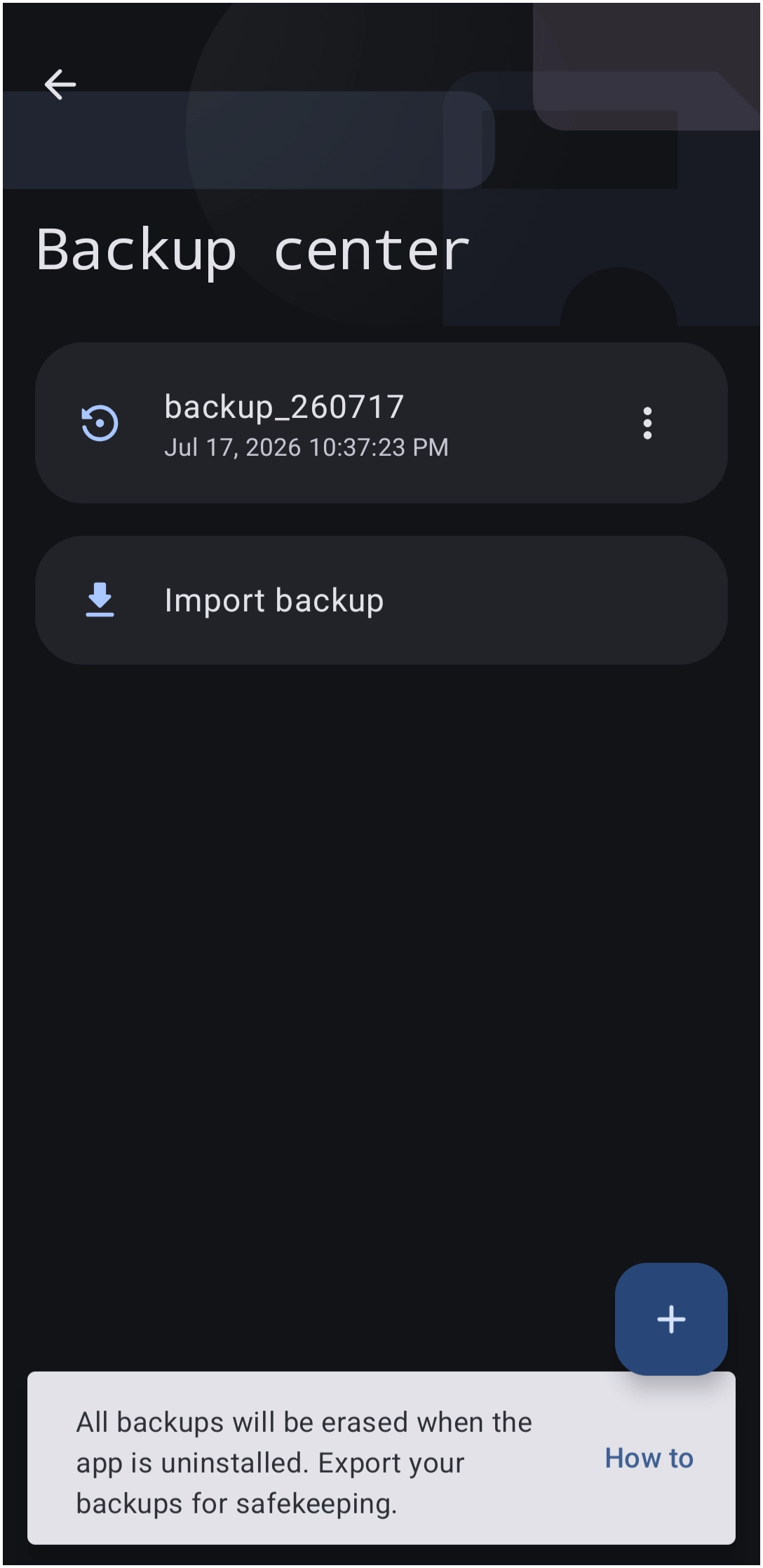
| 💡Pro-Tip: Before Starting: Back Up All Work! | • Before tweaking or applying new themes, create a backup. |
| • Go to Launcher Options → Backup Center → Tap + to save the current layout. |
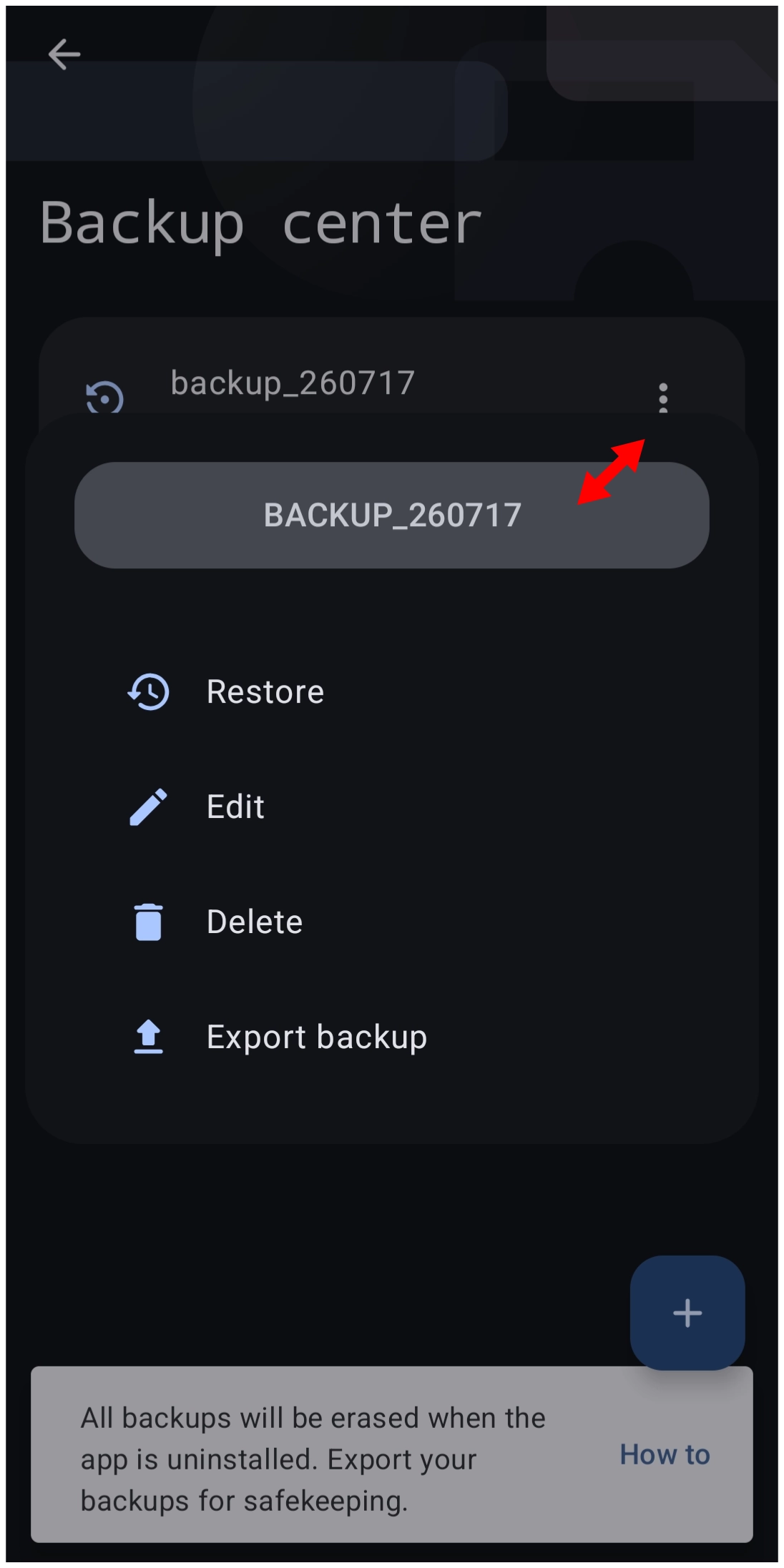
🔗 Deep Dive: Backups & Exporting Setups
📚 Where to Go Next?
- ⚡ Setting up Swipe Gestures or Sequences
Comments & Feedback
Toby Lancer is ready to help! Look for the Quick Help form:
► Desktop: left sidebar located near the bottom for Private to Admin
► Mobile: 3-bar menu at page top.
► Use the Discussion section below to share any experiences and communications with other Total Launcher users.
► Any Registered User can directly update this and any wiki page if desired.
Moderation: To keep the manual clean, all comments are held for appropriateness review. Preview any comment before submitting it. It will not be displayed after submission until it is reviewed. So, please, do not resubmit.
Formatting: If using any code snippets, place them inside code tags (e.g., 'code') using double single quotes (') before and after to keep them readable.
Be Kind: This is a community effort. Please keep feedback constructive and on topic.
~~DISCUSSION~~