meta data for this page
Translations of this page:
- en
This is an old revision of the document!
Instructions for XP-MSN by Pirate Bugdroid
Images
Startup
Shutdown


Instructions
Thank you for installing my Total Launcher setup, the Phone Edition build titled XP - MSN based on the desktop skin originally created by The_Artist at Stardock's site, WinCustomize, for WindowBlinds from October, 2001 through April, 2014. I have brought XP-MSN to life on Total Launcher.
- If new to Total Launcher, you will find some basic navigation instructions below.
- If you want to view a community-supported, unofficial, updated launcher manual which provides more detail and “How To's” to guide you, visit the ui Total Launcher Manual..
- Other uiTLM community groups can be viewed at:
- YouTube - for demo video “How To's”
- To be announced - Reddit: r/uiTLM -
- Discord - Join for live troubleshooting in our 'Q&A' channel or 'General Discussion' channel and check out the 'Downloadable' channel for more Total Launcher setups and object assets.
- Wiki - uiTotalLauncherManual - for step-by-step guides and a modern user-interface manual
Portrait and Landscape Modes
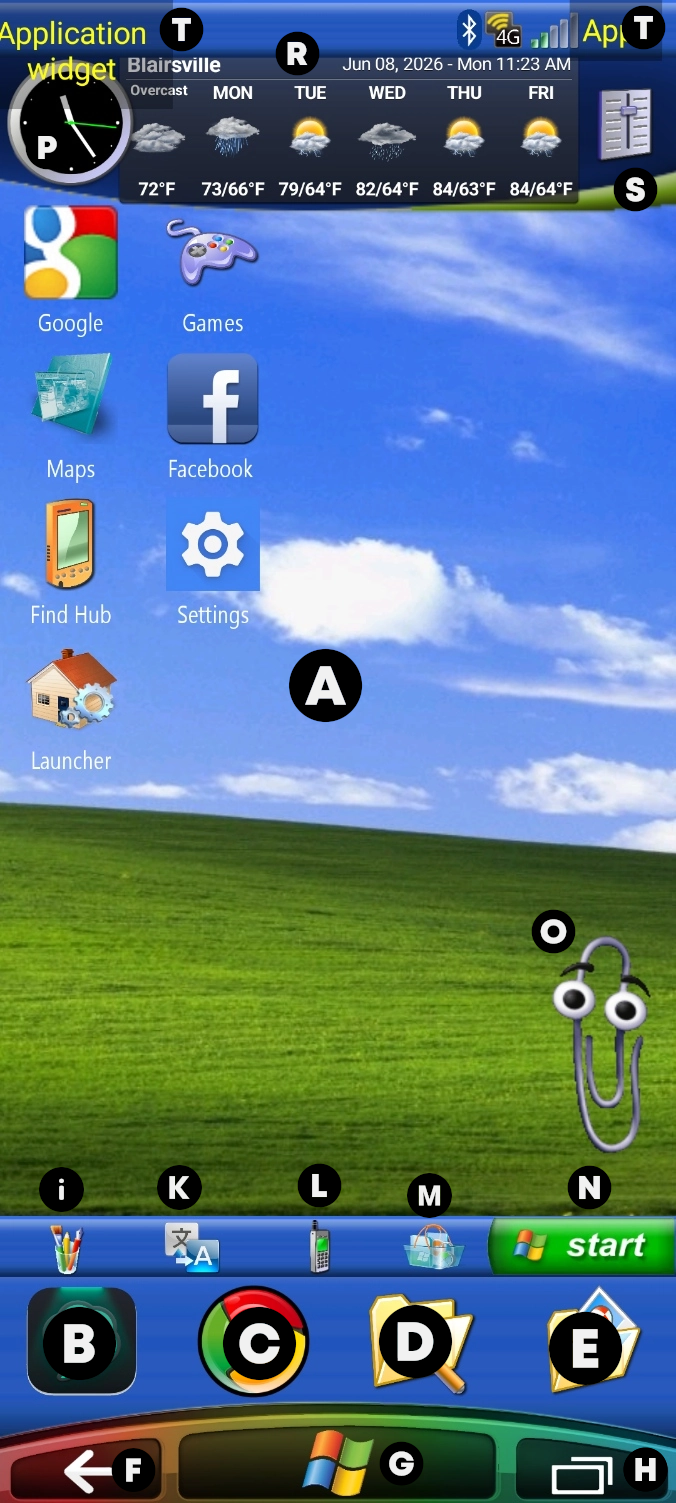
- Bonus! Both modes are supported and built-in for this setup. It offers continuity of XP-MSN from every angle. See above.
Apps Used In This Setup
- (A)
- Background & Home Page
- Swipe left or right to view 2 other pages
- (B)
- ChatGPT - AI assistant (if installed on device)
- (C)
- Chrome Browser (device browser)
- (D)
- Mi File Manager (Xiaomi) (if installed on device)
- (E)
- Image Gallery
- Total Launcher will use the device's default
- (F)
- Go to previous page
- (G)
- Windows Logo
- If not on the Home Page, tap to return to the Home Page
- (H)
- Recent Apps
- Opens a window showing the recently used apps. Tap a selection.
- (i)
- ibisPaint X (if installed on device)
- a digital art and framing app featuring anime, manga, and webtoon illustration tools for mobile
- (K)
- Google Translate
- an app for input text, live, and camera language translations
- (L)
- Phone
- Total Launcher's native phone app with recent calls, favorites, and access to contacts.
- (M)
- Shopping Cart
- A Total Launcher App Group widget, which contains the Google Play Store but can have other “shopping” apps easily added
- (N)
- Start
- Opens a listing of select apps on the device (a “Start” menu)
- Tap the magnifying glass at “All Apps” to open the search keyboard
- Power menu/shutdown button support (if installed on device)
- Opens the device's power menu
- (O)
- “Clippy or Clippet”
- eye candy of Microsoft Word's assistant from 1997 to 2003
- (P)
- Simple Analog Clock (if installed on device)
- a customizable clock app with no battery drain. Background can be adjusted in the app's settings.
- (R)
- Weather & Clock Widget (if installed on device)
- an “everything-in-one” time, date & hyper-local weather forecaster
- the better setting for this is to open the widget app, click on the 3 dots > widget settings > widget style > transparent
- (S)
- Volume Control
- (T)
- [left] XWidget Pro (if installed on the device)
- a customizable Windows & Android widget engine for clocks, weather forecasts, battery status & system monitoring. Samsung's 2012 Galaxy S3 “Nature UX” TouchWiz interface (Frutiger Aero glossy, glass-textured, water-droplet & nature-infusted UI's of the 2000-2010 era). It is a widget platform that allows adding highly customizable widgets to the Windows desktop. It used to have an Android version, but development ended, and it stopped working completely. The person who posted the instruction in the link was kind enough to make a fixed version that I decided to include in the theme.
- and then do this …
- Galaxy S3 Weather Widget (XWidget) (see the following link to install)
- After installing XWidget Pro, download the Galaxy S3 Weather Widget file and extract it to storage/emulated/0/Xwidget/widgets It puts the clock on the top left and the slide drawer. When you open Xwidget, go to the “local” section, then click the three dots at the top right, select “refresh list,” and the widget will appear. You may need to click on the placeholder. It'll take you to Xwidget. Click on the widget you added in the local section, and it'll show up there
- Battery HD Pro (if installed on device)
- app to visualize (digital fuel gauge) and calibrate device battery status
- Hidden - a bonus sliding drawer on the right-center edge (swipe right-to-left) opens “Explore” area
- RAM Usage
- Galaxy S3 Weather Widget (explained above)
Special Comments from Pirate Bugdroid
- If some things look off:
- move widgets manually
- set correct wallpaper
- adjust sizes if needed
- some buttons may require the power menu app
- XWIDGET SETUP… the hardest part here
- you have to set it manually
- download and extract the zip file
- inside, you’ll find a folder inside another folder
- \open it until you reach the actual widget folder (the one containing the widget files)
- move that folder into: → /storage/emulated/0/Xwidget/Widgets
- after moving the widget files:
- open XWidget Pro
- refresh (three dots top right → refresh)
- open the widget you installed
- manually edit it:
- remove everything except time elements (ampm, h1, h2, m1, m2, dot)
- tap each unwanted element individually
- press the “-” button to delete it
If you don't do this, the widget would look messy. You can just go ahead and skip this part and just manually delete the widget
- long-press the widget to enter Edit On mode
- tap the top menu 'Delete' icon [trash can]
from the theme if you don't really want it.
Otherwise, please read the guide I linked for XWidget.
 Pirate Bugdroid
- Discord … to come soon
Discussion