meta data for this page
Resources Shape
Dialog selections are discussed below the image. For navigation to an item, make a selection in the ResourcesShape image.
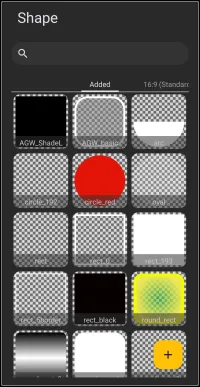
Resources Shape dialog. Make selection above.
- Added - shapes created by the user and “added” to the launcher via the ADD button
- 16:9 (Standard) - represents optional screen resolutions for use. The Added shows shapes for the current use, while 16:9 represents the standard resolution for 1080×2400. Screen resolution impacts the display of elements, such as images (circles) or text, which may appear correct but skewed on a different resolution screen. Other resolutions available (very usable by multi-screen devices) are:
- 18:9 (medium screen)
- 18.5:9 (Long screen)
- 19:9 (Long screen medium)
- 19.3:9 (long screen medium +)
- 19.5:9 (Long screen +)
- 20:9 (Extra long screen)
- 21:9 (Super long screen)
- 22:9 (Flip - Super long screen)
- 25:9+2.5:18 (Fold)
- 25:9 (Extremely long screen)
- 22.5:18 (Squarish screen)
- 5:8 (Tablet)
- Add - press to create shapes based on pre-set, but modifiable, bases.
===== Hidden Index Anchors ===== ui-resources-shape-add
You could leave a comment if you were logged in.
Comments & Feedback
Toby Lancer is ready to help! Look for the Quick Help form:
► Desktop: left sidebar located near the bottom for Private to Admin
► Mobile: 3-bar menu at page top.
► Use the Discussion section below to share any experiences and communications with other Total Launcher users.
► Any Registered User can directly update this and any wiki page if desired.
Moderation: To keep the manual clean, all comments are held for appropriateness review. Preview any comment before submitting it. It will not be displayed after submission until it is reviewed. So, please, do not resubmit.
Formatting: If using any code snippets, place them inside code tags (e.g., 'code') using double single quotes (') before and after to keep them readable.
Be Kind: This is a community effort. Please keep feedback constructive and on topic.
~~DISCUSSION~~