meta data for this page
Page Transitions - Animation Type
Dialog selections are discussed below the image. To navigate to an item, select it in the Page Transitions - Animation Type image. If NOT selecting any item and wanting to return to the prior page: swipe right-to-left; use the browser’s ‘back’ arrow; or use the Wiki’s Backlink icon  on the right sidebar (mobile: drop-down dialog at the top of the page).
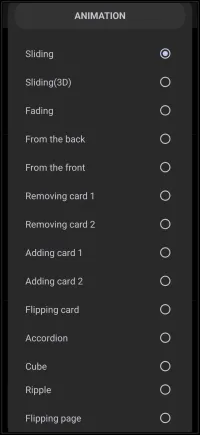
Page Transitions - Animation Type dialog. ANY selection made will return to the previous page.
See a video demonstration of the transitions below.
Page Transition: Description & Demos
In the Total Launcher app, after a selection is made, the user is taken back to the UI & Animation > Transition page to select additional options. The app shows no visualization of the transition format … but in this uiTLM demo, visualization appears when clicking its title in the alphabetical listing below.
| Transition Title | Description |
|---|---|
| Accordion | Similar to flipping a card, but more concave as the transition moves away from the user, revealing the next page like the bellows of an accordion. |
| Adding card 1 | The new page slides left or right on top of the existing page. The existing page remains completely stationary. |
| Adding card 2 | The new page slides left or right on top. The existing page underneath shifts slightly in the same direction and darkens as it disappears. |
| Cube | Pages rotate as if they are the faces on the outside of a spinning 3D cube. |
| Fading | The existing page fades out, revealing the new page. No sliding or 3D movement. |
| Flipping card | A rigid rotation of the existing page, pivoting on its vertical center to reveal the new page on the other side. |
| Flipping page | Simulates a physical book page turning, complete with a curling effect at the corner. |
| From the back | Similar to From the front, which switches the action on the direction of the swipe. Here: Swipe right to left: the new page emerges from the back as the existing page dissolves as it moves forward; Swipe left to right: the new page emerges from the front as the existing page dissolves to the back. |
| From the front | Similar to From the back, which switches the action on the direction of the swipe. Here: Swipe right to left: the new page emerges from the front as the existing page dissolves to the back; Swipe left to right: the new page moves from back to front as the existing page moves forward and dissolves. |
| Removing card 1 | The existing page slides away (on top) to reveal the new page underneath. The new page remains completely stationary. |
| Removing card 2 | The existing page slides away (on top) to reveal the new screen underneath. The new screen shifts slightly into place and brightens. |
| Ripple | The page distorts with a radial wave effect, simulating water ripples that expand outward to reveal the new page. |
| Sliding | The new page slides either left or right as it pushes the existing page in the same direction |
| Sliding (3D) | The existing page appears to turn on a spindle, either left or right, to reveal the new page, which has the opposite entry effect. |


===== Hidden Index Anchors ===== ui-ui_anim-page_trans
Comments & Feedback
Toby Lancer is ready to help! Look for the Quick Help form:
► Desktop: left sidebar located near the bottom for Private to Admin
► Mobile: 3-bar menu at page top.
► Use the Discussion section below to share any experiences and communications with other Total Launcher users.
► Any Registered User can directly update this and any wiki page if desired.
Moderation: To keep the manual clean, all comments are held for appropriateness review. Preview any comment before submitting it. It will not be displayed after submission until it is reviewed. So, please, do not resubmit.
Formatting: If using any code snippets, place them inside code tags (e.g., 'code') using double single quotes (') before and after to keep them readable.
Be Kind: This is a community effort. Please keep feedback constructive and on topic.
~~DISCUSSION~~