meta data for this page
Icon Style: Application Icons
Dialog selections are discussed below the image. To navigate to an item, select it in the Application Icons image.
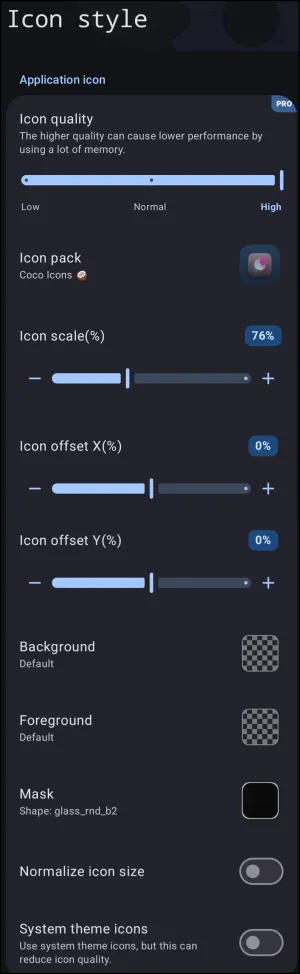
Application Icons dialog. Make selection above.
The dialog's elements shown above are discussed below:
- Icon quality: - Controls rendering resolution with options ranging from
LowtoHigh. Higher rendering quality increases RAM usage, which can impact system performance on lower-spec hardware.
- Icon pack: - Opens a dialog listing the device-installed icon packs and links to Google Play Store's downloadable icon packs. This will replace system default shortcut graphics.
- Icon scale(%): - Adjusts icon size proportionally relative to default layout grid dimensions with a range from
0%to200%.
- Icon offset X(%): - Shifts icon graphics horizontally along the X-axis placement plane, ranging from
-100%-0%(current position) -100%.
- Icon offset Y(%): - Shifts icon graphics vertically along the Y-axis placement plane, ranging from
-100%-0%(current position) -100%.
- Background: - Applies a background image or shape layer directly behind the icon graphic.
- Foreground: - Sets an overlay graphic or foreground image layer above the icon graphic.
- Mask: - Enforces a specific geometric vector shape mask (e.g.,
glass_rnd_b2) onto application icons.
- Normalize icon size: - Toggles automatic scale harmonization to balance uneven icon sizes across all app packages.
- System theme icons: - Toggles system-level themed icons, though enabling this setting may reduce overall icon rendering quality.
===== Hidden Index Anchors ===== ui-generic-icon_pack ui-generic-background-no_dynamic_color_shadow ui-folder-style-label-thumbnail-foreground ui-icon_style-mask
You could leave a comment if you were logged in.
Comments & Feedback
Toby Lancer is ready to help! Look for the Quick Help form:
► Desktop: left sidebar located near the bottom for Private to Admin
► Mobile: 3-bar menu at page top.
► Use the Discussion section below to share any experiences and communications with other Total Launcher users.
► Any Registered User can directly update this and any wiki page if desired.
Moderation: To keep the manual clean, all comments are held for appropriateness review. Preview any comment before submitting it. It will not be displayed after submission until it is reviewed. So, please, do not resubmit.
Formatting: If using any code snippets, place them inside code tags (e.g., 'code') using double single quotes (') before and after to keep them readable.
Be Kind: This is a community effort. Please keep feedback constructive and on topic.
~~DISCUSSION~~