meta data for this page
Image Edit
Dialog selections are discussed below the image. For navigation to an item, make a selection in the Image Edit image.
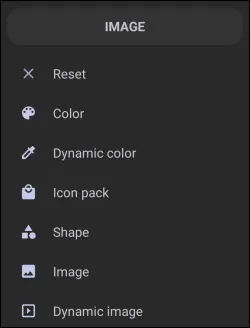
Image Edit dialog. Make selection above.
This dialog screen shows options for:
- Reset - Select to discard current changes to the foreground and return to the previous screen.
- Color - Select a specific
ARGBcolor using the color picker utility to apply as a foreground overlay. Utilizing transparent hues is recommended to prevent obscuring underlying background elements. - Dynamic color - Select an adaptive color scheme based on the system's
Material Youdesign language. This applies predefined thematic colors to the foreground overlay based on the current device wallpaper or theme. - Icon pack - Select an icon from installed applications, built-in options, or third-party icon packs to display as the primary foreground object.
- Shape - Select a geometric shape, complete with color and gradient fill options, to act as a foreground element. Opaque shapes will cover underlying background graphics.
- Image - Select an image file from the device or resource storage to serve as the primary foreground layer.
- Dynamic image - Select from existing images in the Launcher's resource dialog. A dynamic image is a specialized image object that automatically swaps its displayed graphic based on a specific variable value, such as current weather, battery level, or charging status.
===== Hidden Index Anchors ===== ui-object-edit-option ui-color_picker ui-dynamic_color ui-generic-icon_pack ui-launcher_options-resources-shape ui-launcher_options-resources-image ui-launcher_options-resources-dynamic_image
You could leave a comment if you were logged in.